Talk to visitors · Widget design
Make the chat look like your brand
Change the chat colours, button, corner and texts, then see a live preview next to the settings. Choose the language and where on your site the chat appears.
How you’ll use it
What you actually do in LiveChatBot, step by step.
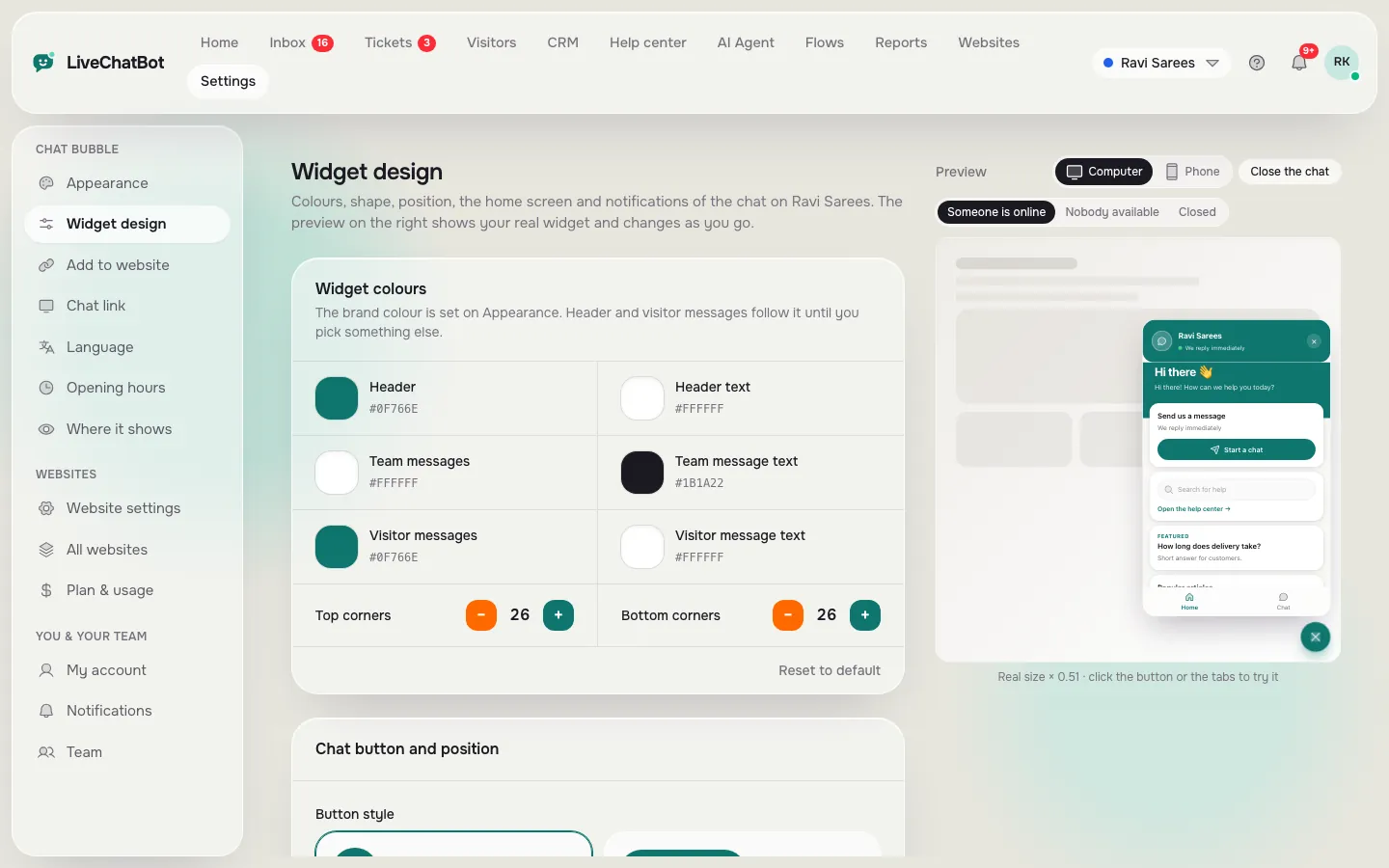
Open Settings → Widget design
Pick header and message colours, corner roundness, and a chat button style and size.
Check the preview
The preview updates as you change things, for computer and phone.
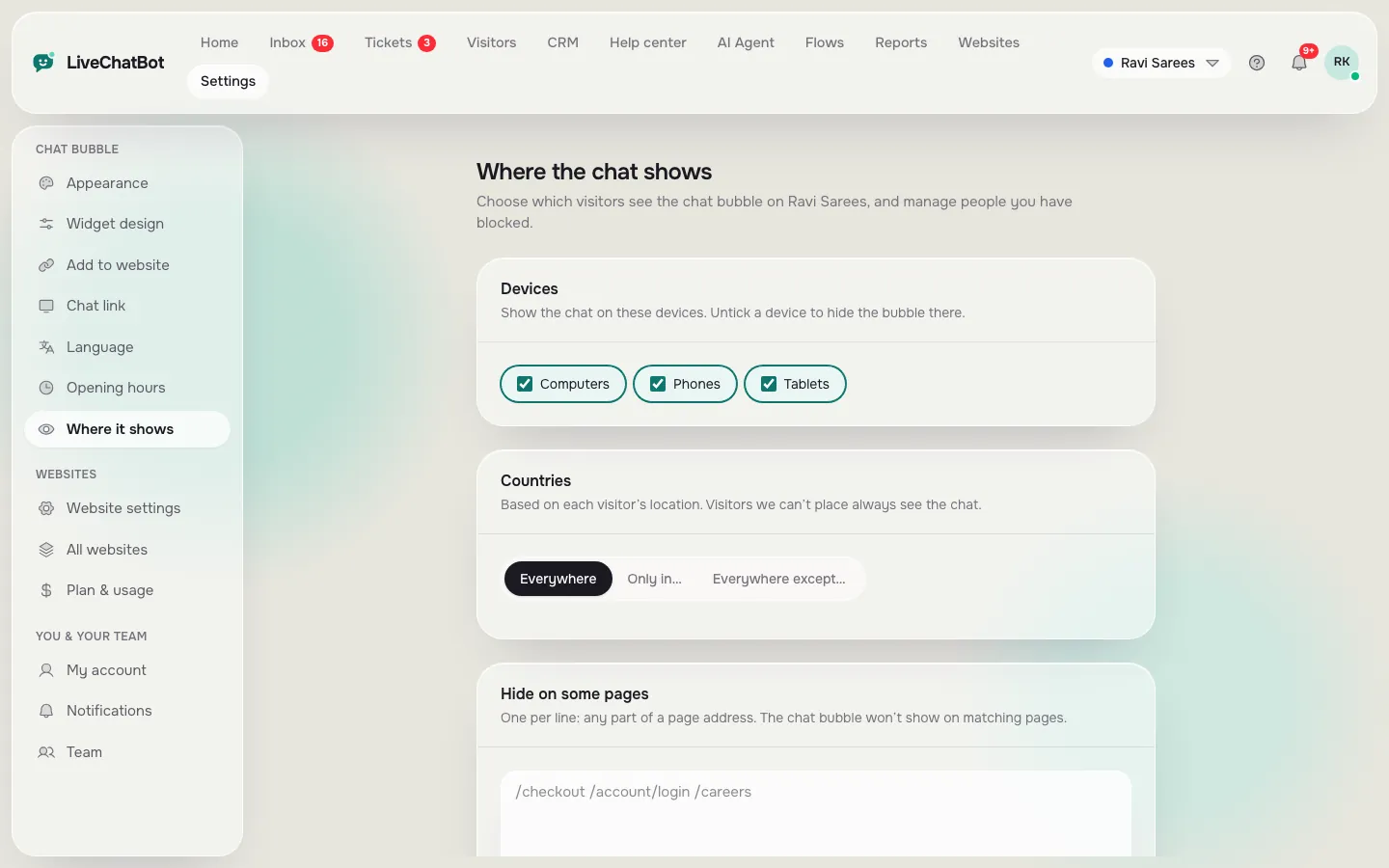
Choose where it shows
In Settings → Where it shows, turn the chat on or off for phones, tablets, countries and pages.
What you’ll see
Real screens from the LiveChatBot panel, shown with sample data. Tap any picture to see it full size.
What it does
Colours and corners
Six colours, corner radius and a gradient header.
Many chat button designs
Round bubble or pill with text, with different icons and sizes.
Six positions
Bottom or middle, left or right, with fine offsets.
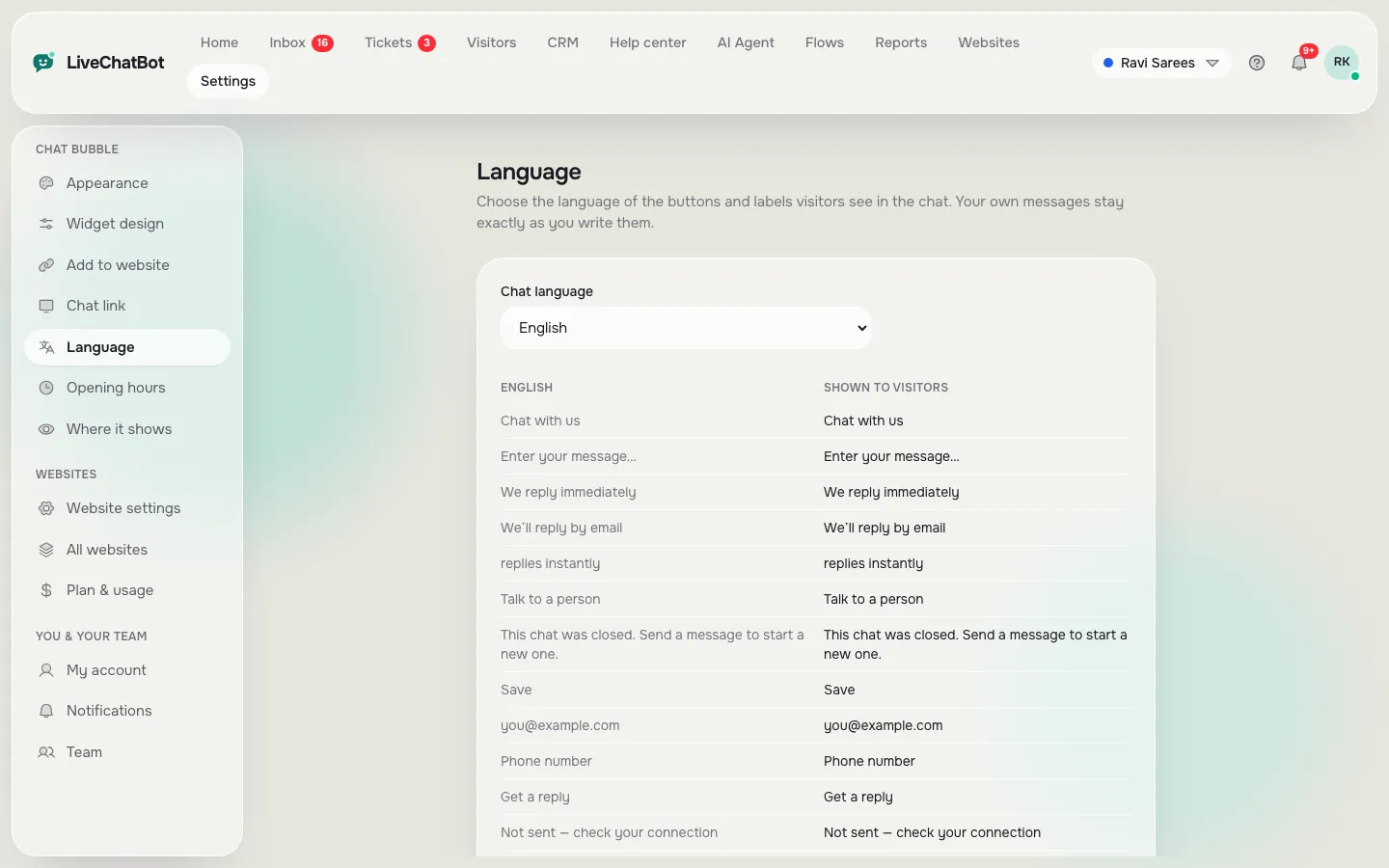
Language
Pick the chat language or follow the visitor’s browser, and edit every text.
Hide on pages
Keep the chat off checkout, login or any page you list.
Block visitors
Block a visitor or an IP address that sends spam.
- Each website has its own design, so two brands can look different from one account.
Prices: see pricing.
Questions about Widget design
Can I match the chat to my brand colours?
Yes. Set the header, message and button colours, and the preview shows the result before you save.
Can I hide the chat on some pages?
Yes. Add the pages in Settings → Where it shows and the bubble will not load there.
Can the chat speak Hindi or Tamil?
You can write every visitor text in any language in Settings → Language.
Works well with
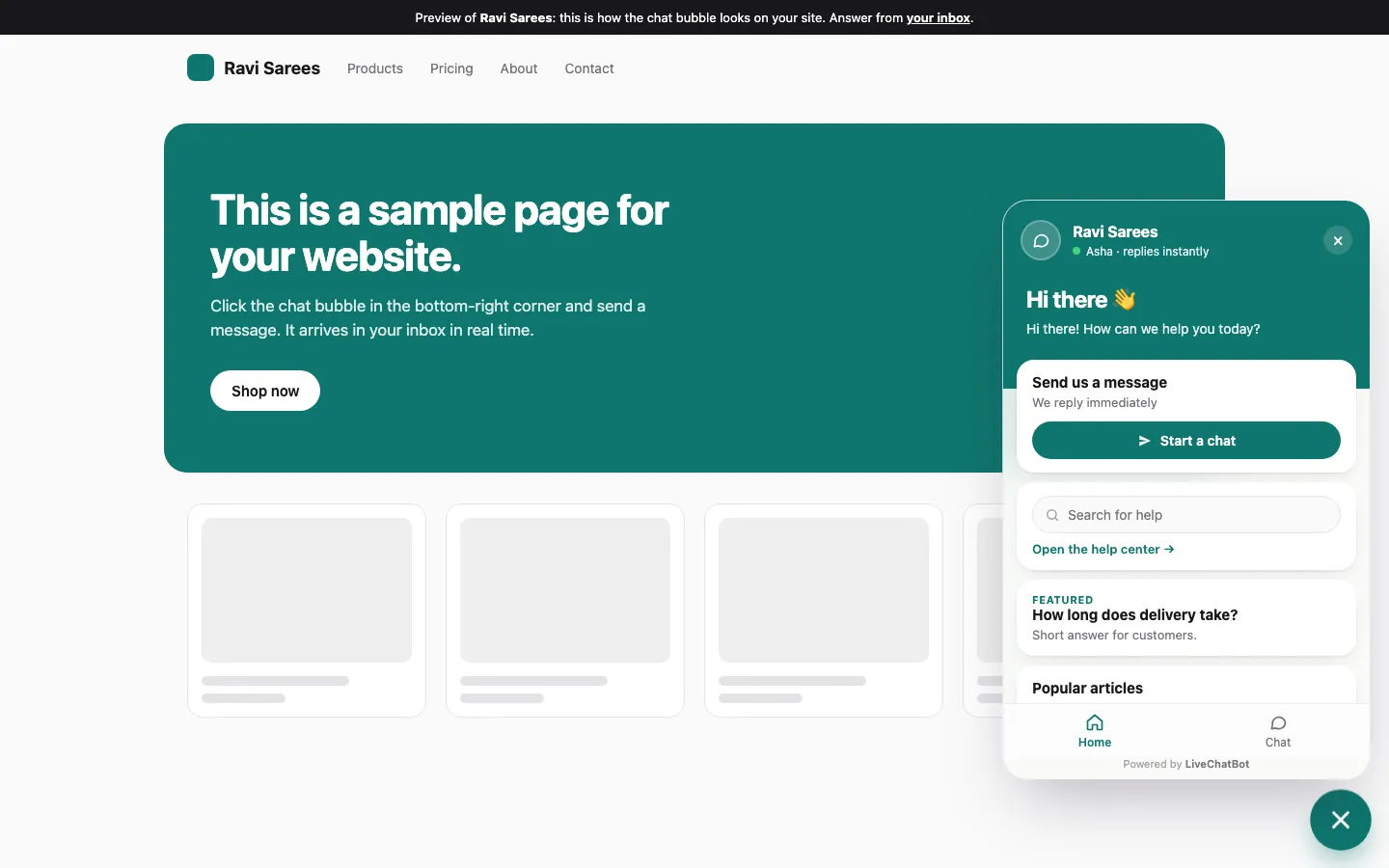
Live chat widget
A light chat bubble for any website, on desktop and phone.
See how it works →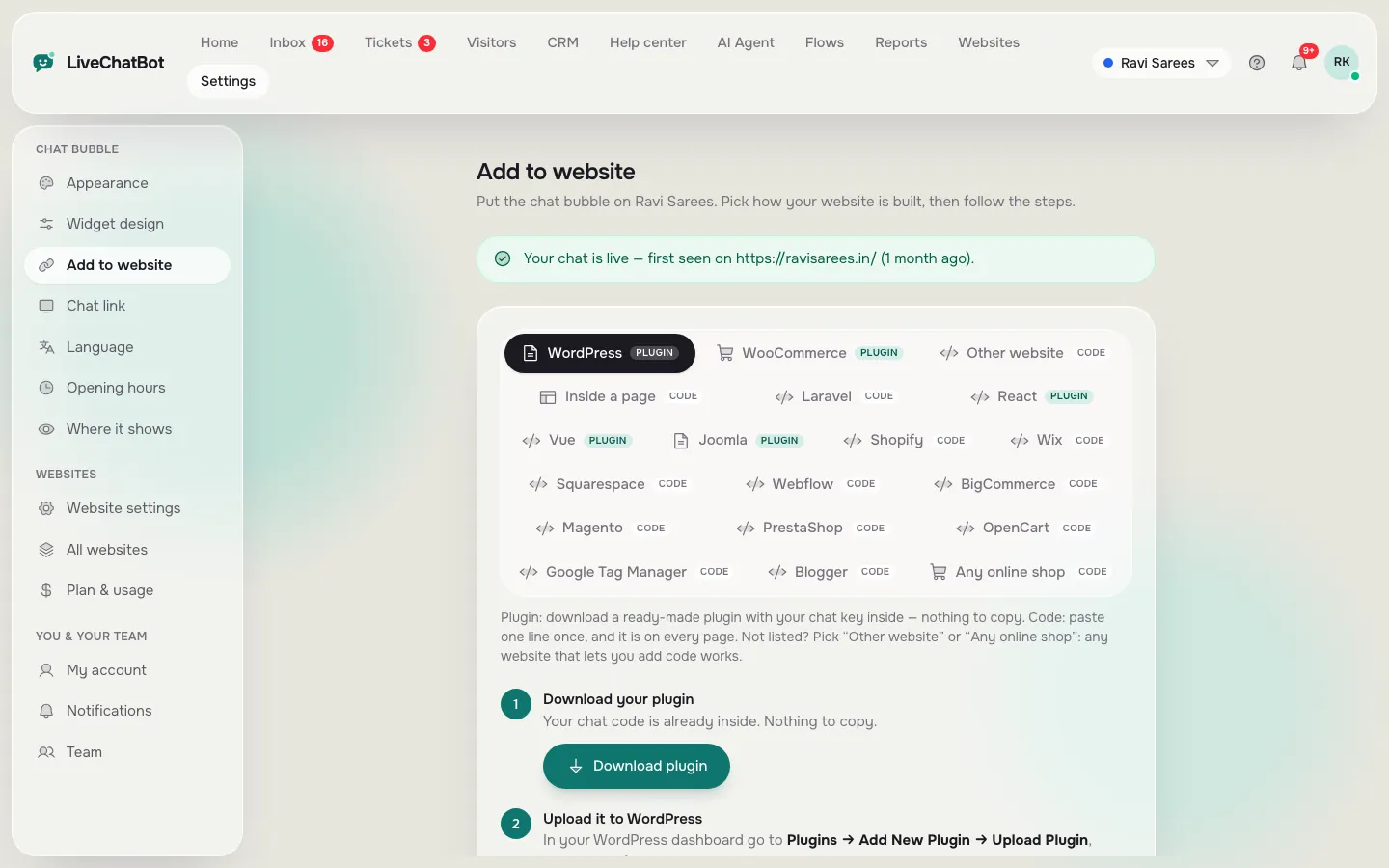
Easy install
WordPress plugin, Shopify, Wix and 19 step-by-step install guides.
See how it works →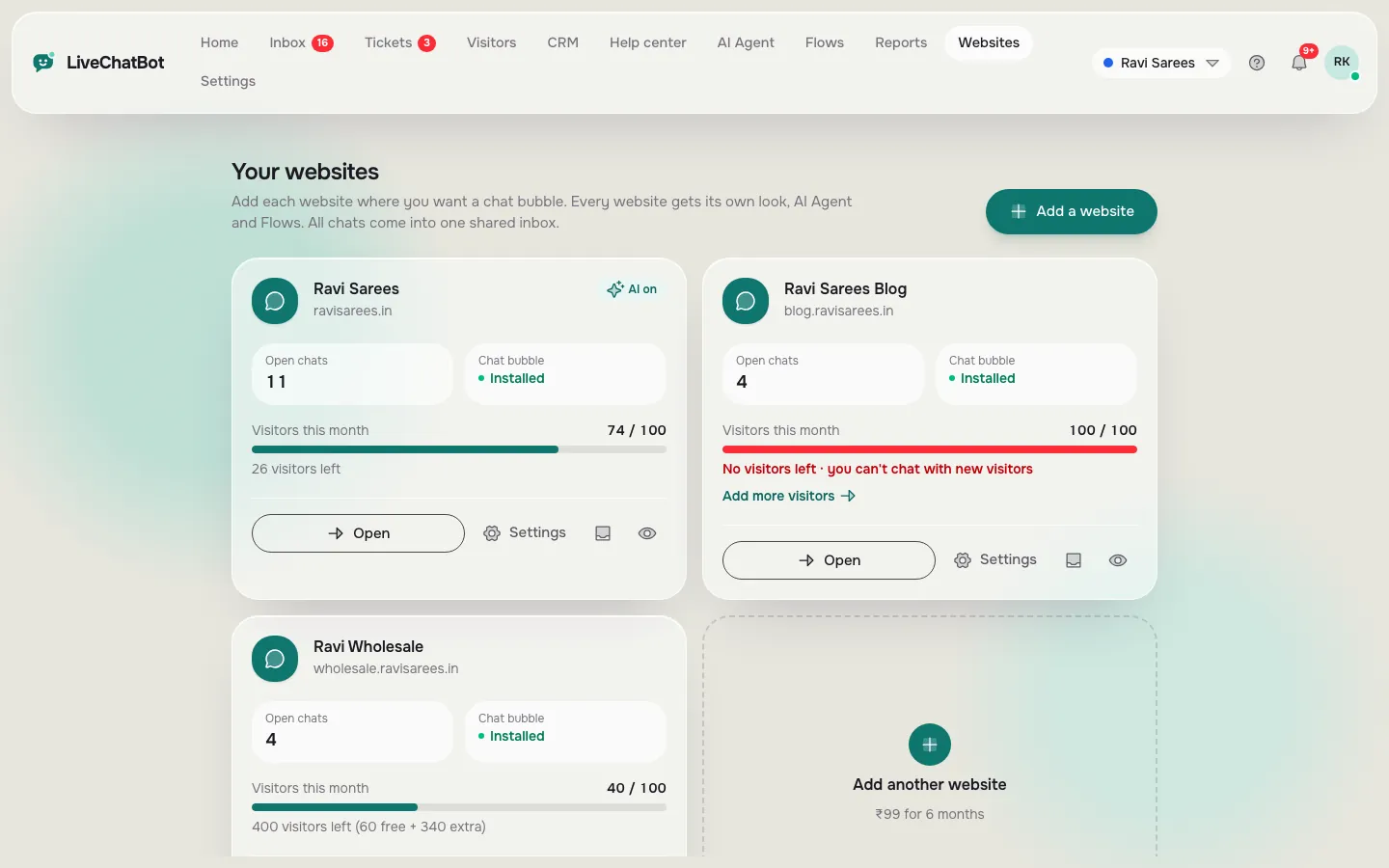
Multiple websites
Run chat on several websites from one account.
See how it works →